
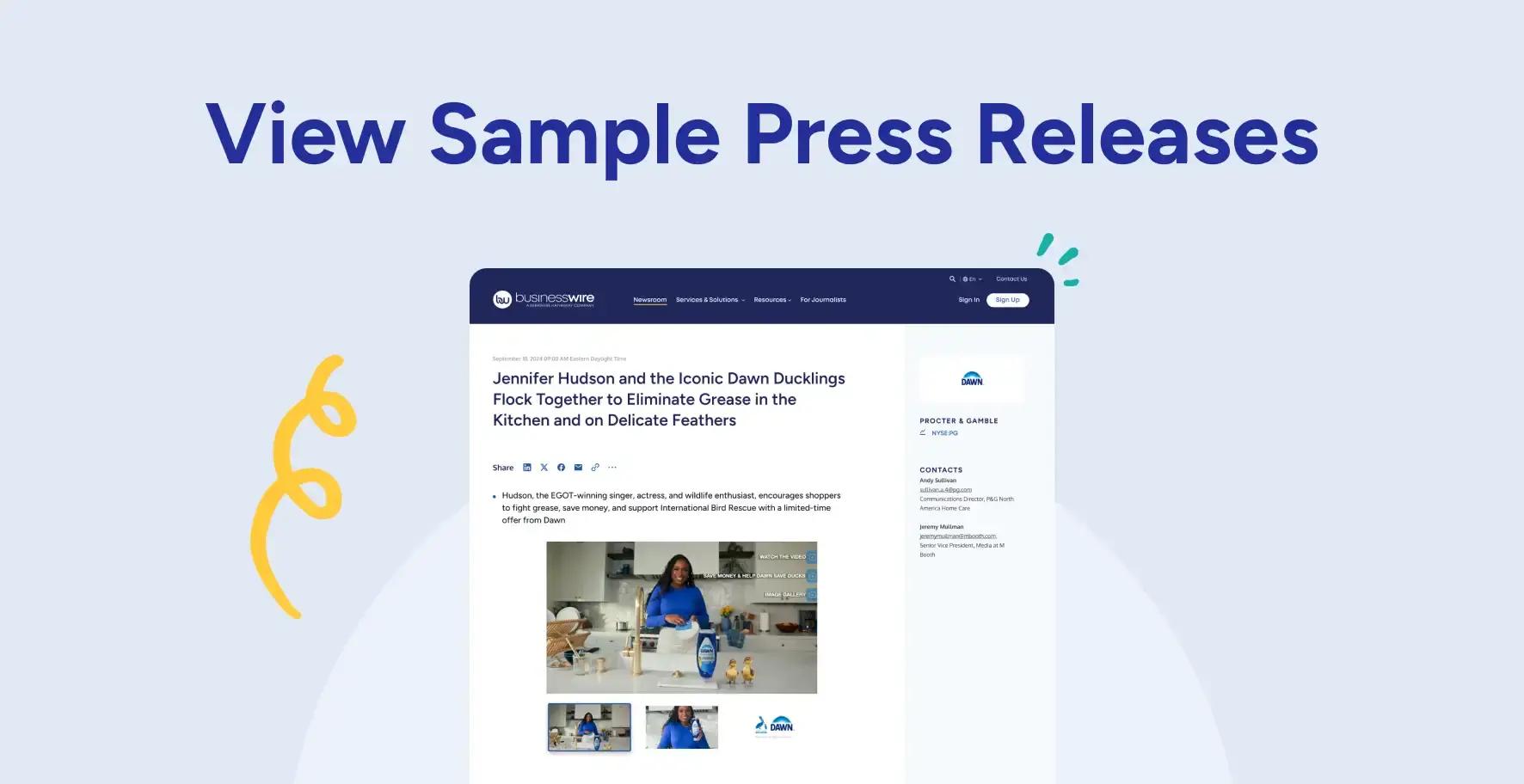
Log in to Your Business Wire Connect Account
If you have a Business Wire Account, log in.
If you need access to your organization’s account, please contact your internal account administrator. If your organization does not have an active Business Wire account, sign up.
Create a New List
Click Contact Lists and select Create New List.
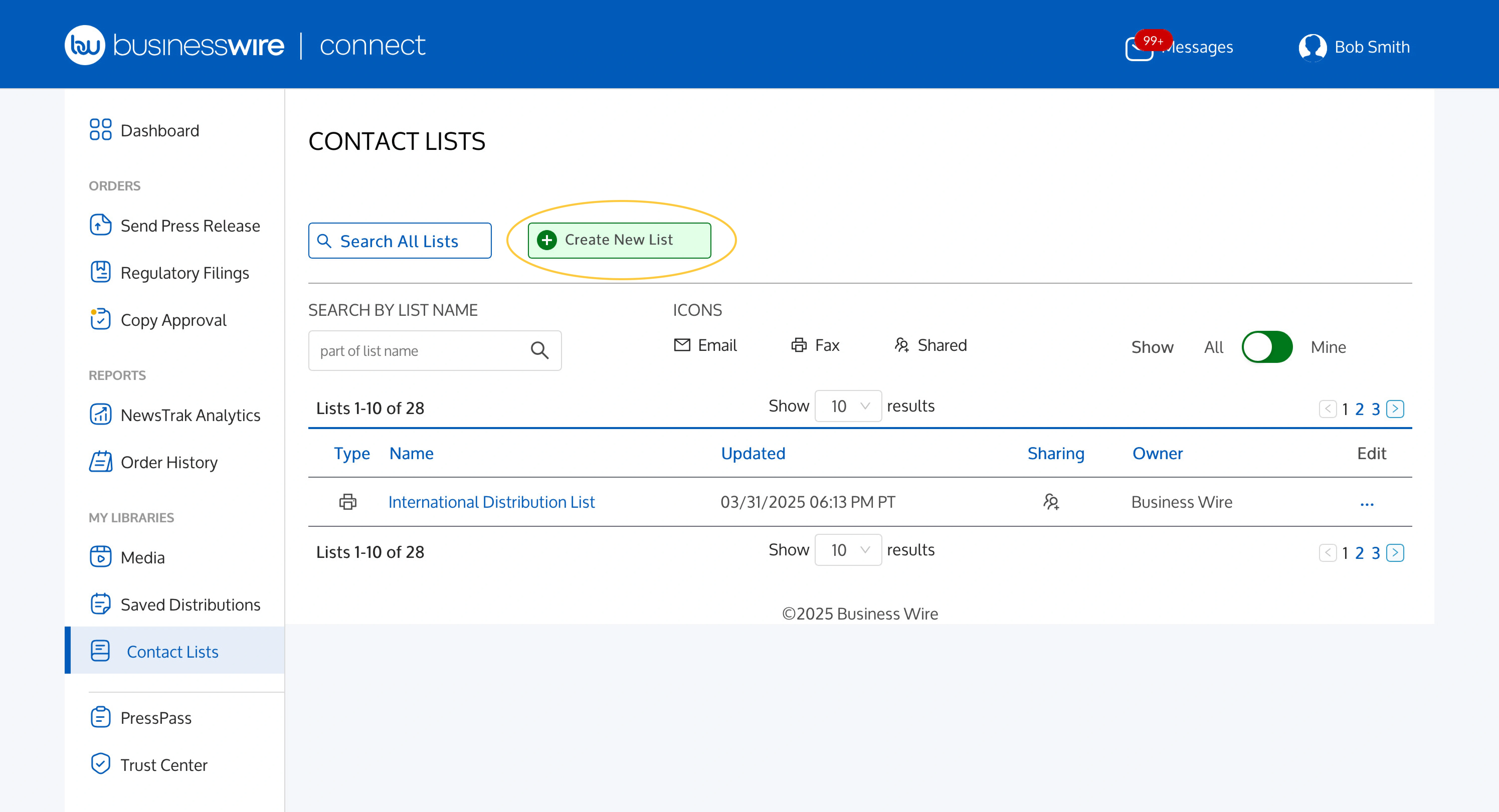
On the Create New List page:
- Select List Type (Email or Fax).
- Name your list in the List Name field.
- Select Sharing option (Shared or Not Shared).
- Add a Description.
- Click Continue.
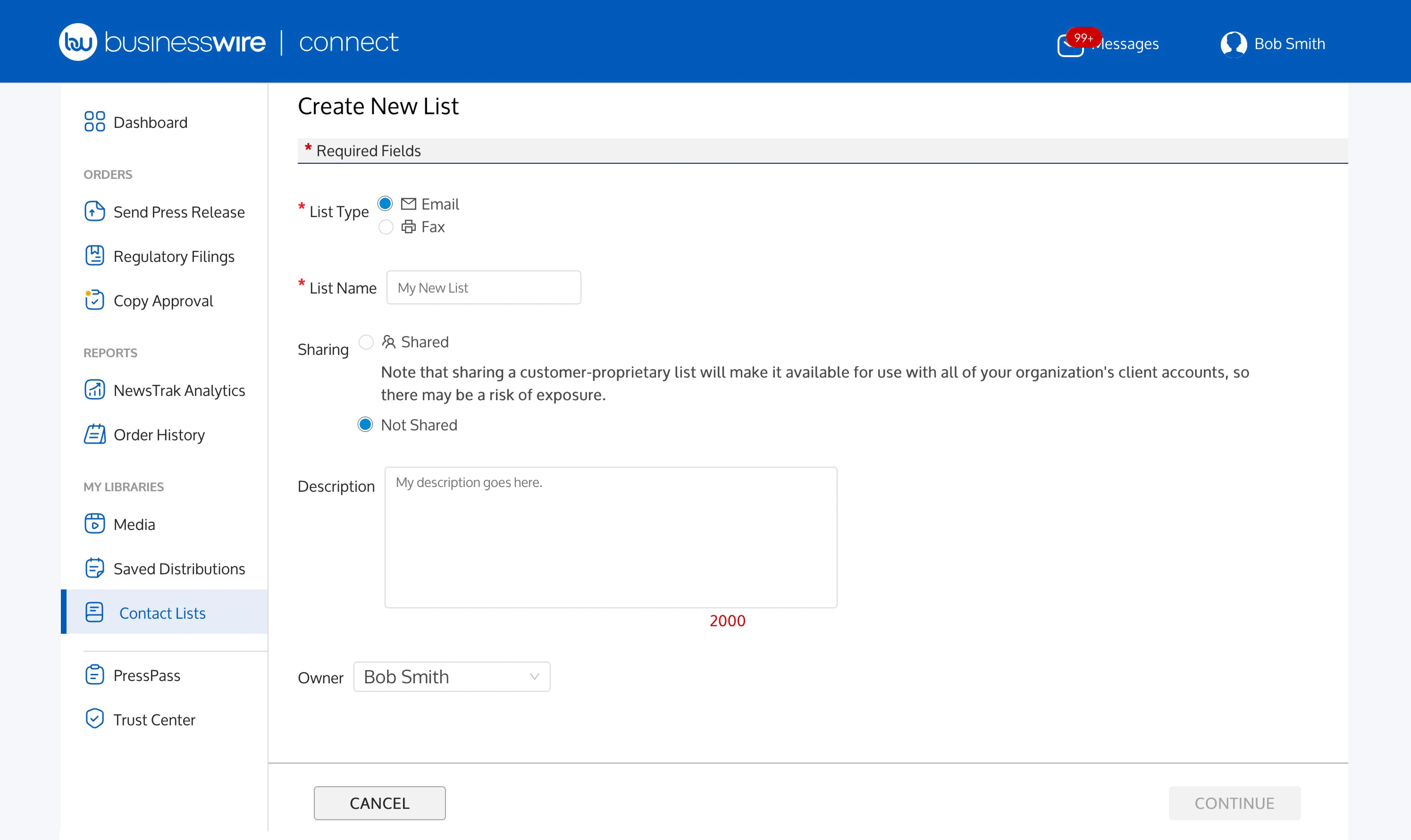
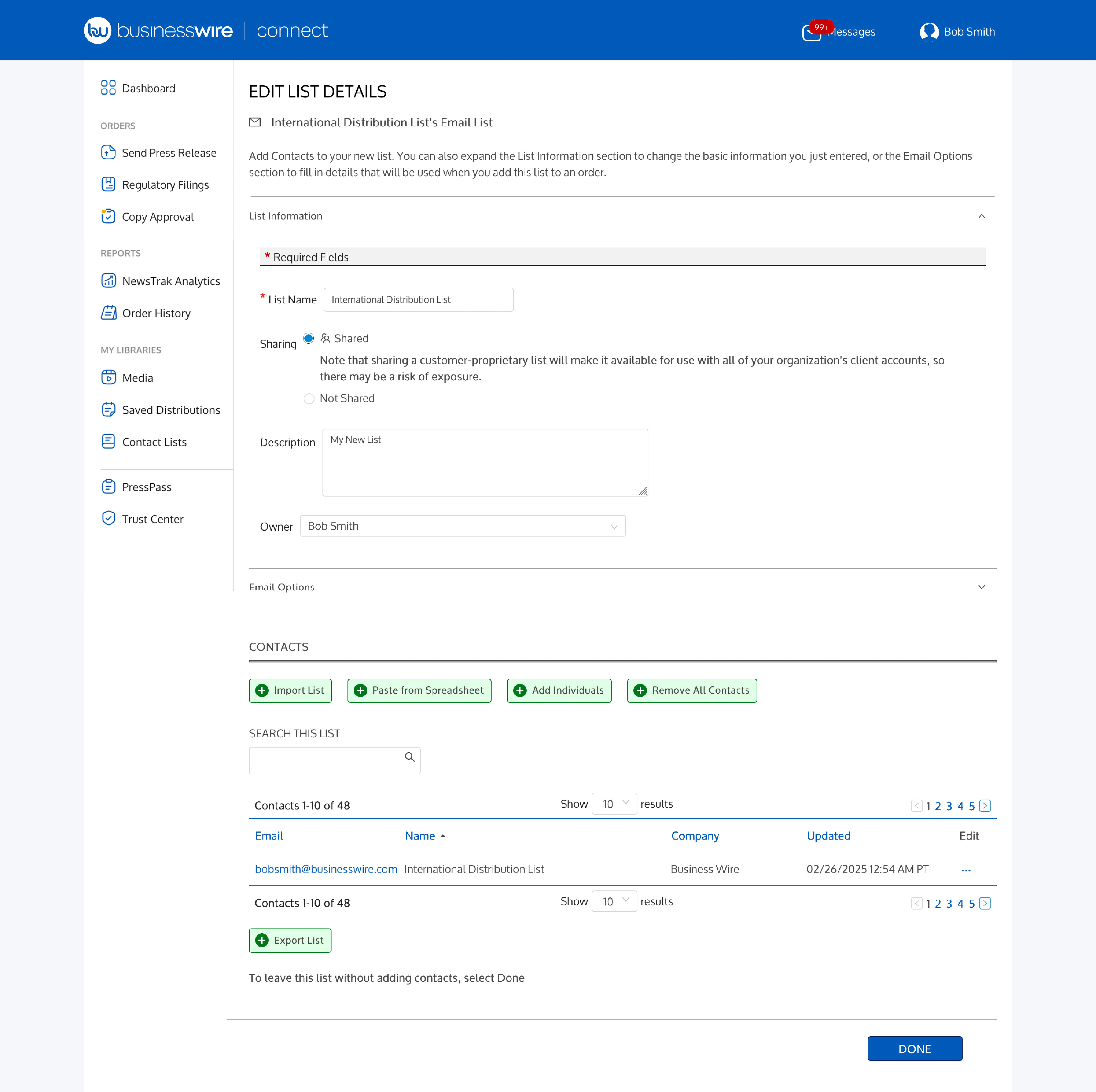
On the Edit List Details page:
- You may edit your List Information (Name, Shared/Not Shared, Description, Owner).
- You may also edit your Email Options (Sender Name, Reply to Name) or Fax Options (From field).
- Add contacts to your list via Import List, Paste from Spreadsheet, or Add Individuals.
- Click Done.
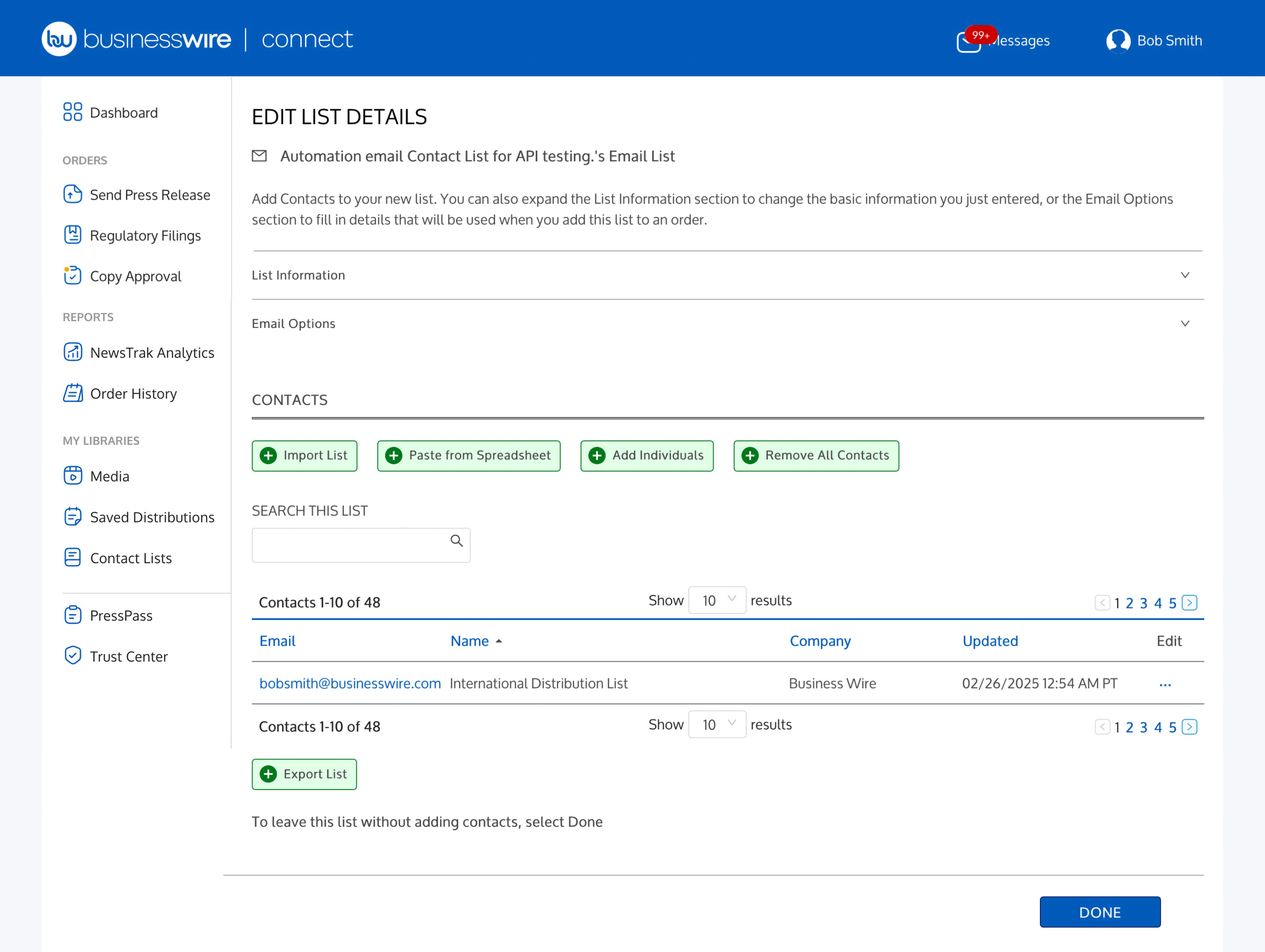
Modify an Existing List
- Click Contact Lists.
- Click the list name.
- Click List Information or Email Options/Fax Options to make any edits to these fields.
- Under Contacts, select Import List, Paste from Spreadsheet, Add Individuals, or Remove All Contacts if you’d like to take any of these actions.
- To edit an existing contact, click on the Email or Fax Number in your contact list.
- You may also click the ellipsis (…) under the Edit column and Edit or Delete the contact.
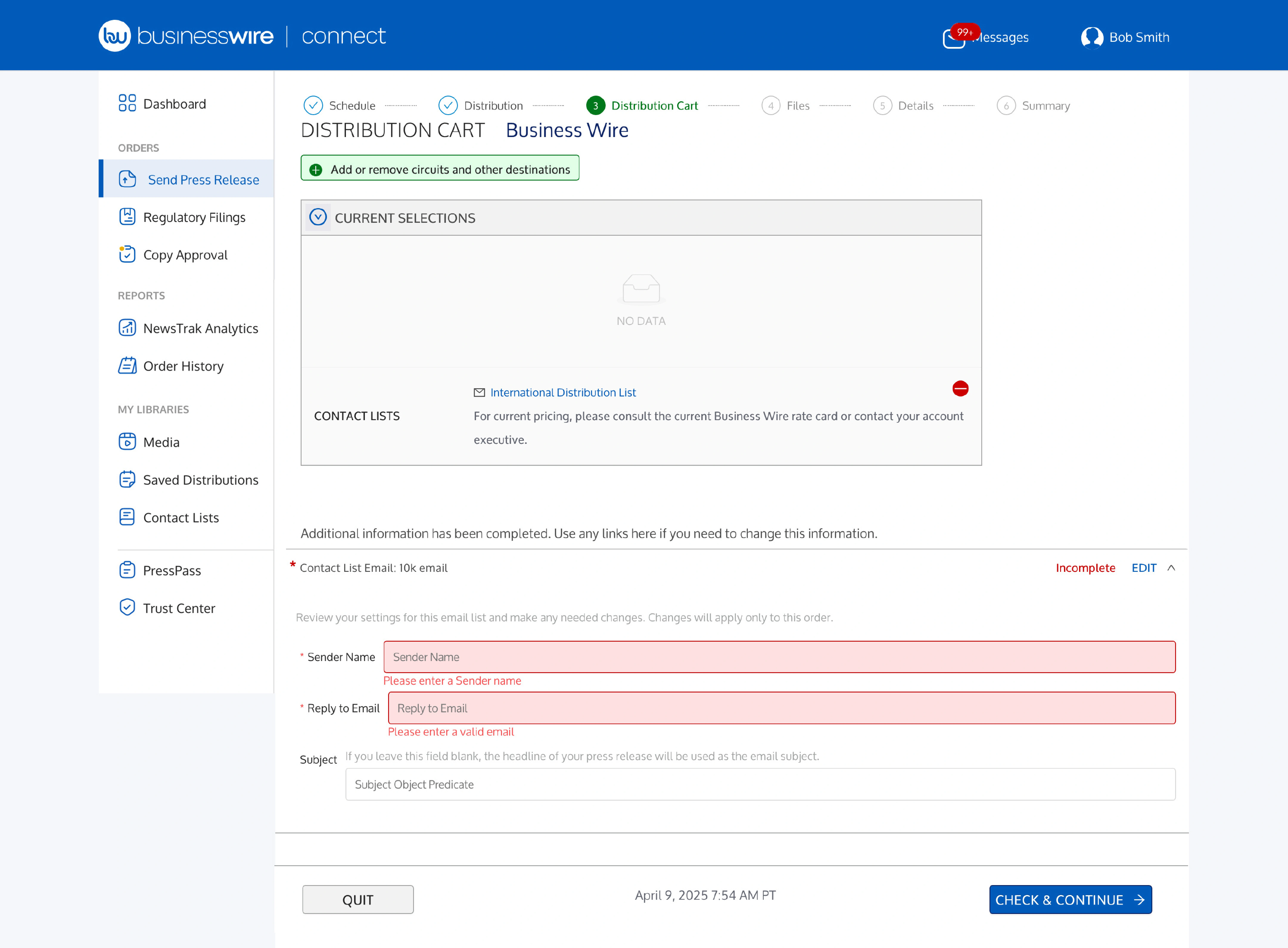
Please note: if the following details are not added when creating or modifying a list, you will need to add additional information as you complete your press release order.
- Email lists require Sender Name and Reply to Email.
- Fax lists require a From field.
After importing a list, adding, or modifying individuals, click Done at the bottom of the screen.
Add to Your Order
To add an Email List or Fax List to your order, start a new press release order.