
Overlay Section
The Overlay Section is used on Service Level 2 pages to configure the white overlay from the hero. Every standard page must have at least one component in the Overlay Section. All elements in the Overlay section will have a white background regardless of the background setting selected at the component level.
Cards
Use Case: Use either the Cards w/ Ilcons or Cards w/ Intro components to relate like information in a visual list. These components are available on all Page Collection and Single Type page. They are not available in Resource or Help pages. Both Cards components can be used in the Page Overlay and Content Section. Use the Cards w/ Ilcons component as a standalone component or to append to a Storyblade to provide deeper context.
Controls: Both Cards components have anchor link options and toggles to change the background colors. The Cards w/ Intro component has CTA configurations within the Cards only.
- Cards w/ Ilcons: White or transparent background with only a three-column layout
- Cards w/ Intro: White or transparent full-width section background under a blue or transparent content-width background in either a 2- or 3-column layout.
Content Specs: Card titles should be 15 - 45 characters long and Card Paragraphs should be 75 - 250 characters long. Cards within the Cards w/ Intro component have optional CTA configurations that should be 10 - 40 characters long.

Card
Card
Card Titles do not have <h> tag controls. Cards use a Limited Rich Text Editor that DOES NOT allow for line breaks, lists, text styling, or hyperlinks. Card Subheadings should be 115 - 350 characters long. Card paragraphs should be 75 - 250 characters long.

Card
Card
Cards use a Limited Rich Text Editor that DOES NOT allow for line breaks, lists, text styling, or hyperlinks. Card Subheadings should be 115 - 350 characters long. Card paragraphs should be 75 - 250 characters long.

Card
Card
Cards use a Limited Rich Text Editor that DOES NOT allow for line breaks, lists, text styling, or hyperlinks. Card Subheadings should be 115 - 350 characters long. Card paragraphs should be 75 - 250 characters long.



Feature Card
Use Case: Use this component to feature one specific Resource asset. This component is available on all Page Collection and Single Type page. It is not available in Resource or Help pages.
Controls: The component has a resource selector that lets you pick one Strapi Resource asset to feature, title tag controls, an optional description field, CTA link configurations, and anchor link configurations.
Content Specs: Titles automatically pull in from the asset and are not editable. Description length is dependent on the title length. The full copy section should not be longer than the image asset.

Header
Use Case: Use this component to introduce other related page components, video assets, or cards. This component is available on all Page Collection and Single Type page. It is not available in Resource or Help pages.
Controls: The component has a 1- or 2-column layout, <h> tag configurations, background controls, width controls, and optional anchor link and CTA link configurations.
Content Specs: Titles should be 10 - 65 characters long. If you're using the optional CTAs (10 - 40 characters), the paragraph copy should not exceed 300 characters. Otherwise, the content should be 100 - 380 characters long.
Logo Wall
Use Case: Use this component to highlight partners and customers. This component is available on all Page Collection and Single Type page. It is not available in Resource or Help pages.
Controls: Add as many logos as you want. Five will show at any given time and cycle through the full list. Logos cannot be linked. There is an optional heading with <h> tag controls. This component can have a white or transparent background.
Specs: Optional titles should be 20 - 60 characters long. Use the black and white versions of logos in this component.
Quick Links
Use Case: Use this component as jump links to components on the same page. This component is available on all Page Collection and Single Type page. It is not available in Resource or Help pages.
Controls: All text for these sections is configured at the individual component level in the anchor link configurations. You can choose to include links only in the overlay section, content section, or the whole page.
Specs: Link text in this component should be no longer than 50 characters per item (approx two lines), but the total number of links allowed per component depends on the length of the individual components.
Rich Text Editor
Use Case: Limit the use of this component to ensure brand styling is consistent across the pages. Common use cases are to house tables, infographics, gifs, or other media elements that are not videos. This component is available for all pages.
Controls: Full Rich Text Editor allowing for lists, tables, media embeds, text styling, hyperlinks, and line breaks. There is a full-width and narrow version of this component (primary use should be Narrow for readability). There are also anchor link abilities at the component level and within the HTML source code.
Stats
Use Case: Use this component to highlight any specific stats relevant to the page copy. This component is available on all Page Collection and Single Type page. It is not available in Resource or Help pages.
Controls: While the component doesn't limit the number of stats you can use, stick to no more than 5 for readability. These components also have background, width and anchor controls. There are no <h> tag controls on this component.
Specs: Stat descriptions should be 10 - 50 characters each and character matched across all descriptions.
Stat Description
002001.9001.8001.7001.6Stat Description
003002.9002.8002.7002.6Stat Description
004003.9003.8003.7003.6Stat Description
005004.9004.8004.7004.6Stat Description
Storyblade
Use Case: This is a visual paragraph component. There are two component versions: Standalone and Stats. Add Cards w/ Ilcons, Tiles: Ilcons, or Logo Walls to enhance this component. These components are available on all Page Collection and Single Type page. They are not available in Resource or Help pages.
Controls: This component has a layout, background, and <h> tag controls, and optional anchor link and CTA link configurations. Above the Title, components can have an optional Section Heading or Image.
Stats Specs: The Stats component has a single Title field instead of the Title and Subparagraph fields that can accommodate a single sentence, phrase, or quote. It also has optional Stat fields.
Storyblade
Controls: This optional subparagraph uses a Limited Rich Text Editor that allows for line breaks, but not for lists, text styling, and hyperlinks.
Content Specs: It should be 115 - 350 characters long. Optional CTA links (max 2) text should be 10 - 45 characters long and formatted as a "Link" Variant.

Testimonials
Use Case: Use either the Testimonials: Feature or Testimonials: Cards Carousel List components to highlight quotes from customers and partners. (Do not use the Testimonials: Cards Carousel—it is an old version; use the List version instead). These components are available on all Page Collection and Single Type page. They are not available in Resource or Help pages. All components can be used in the Page Overlay and Content Section.
Controls: Both testimonials components have anchor link controls. There is no limit to the number of testimonial cards you can add.
- Features: Manually add the quote, credentials, and color and grayscale logo versions for each testimonial card. Only one testimonial card shows at a time. The grayscale logos act as "navigation" within this component—the color logo will show when that testimonial is selected.
- List: Select the relevant testimonials from the Testimonial database. This component also has a required title with <h> tag controls and background controls. Three testimonial cards will show at any given time.
Content Specs: Testimonials should be no longer than 230 characters and credential titles 12 - 50 characters as possible. Headings should be 10 - 65 characters and optional Link Text 10 - 40 characters.


Lorem ipsum dolor sit amet, consectetur adipiscing elit. Etiam bibendum porta nisi in commodo. Vivamus vulputate lectus felis, et viverra dolor scelerisque sagittis.

Lorem Ipsum


Tiles
Use Case: Use this component as navigation to anchors or other pages, or to highlight specific information in a list. This component is available on all Page Collection and Single Type page. It is not available in Resource or Help pages.
Controls: The component must have exactly 5 tiles that can be linked or not. It has background and anchor controls.
Content Specs: Titles should be no more than 30 characters long each (max 2 rows).

Tile Description

Tile Description

Tile Description

Tile Description

Tile Description
Video
Use Case: Use this component to embed an mp4 file. This component is available on all Page Collection and Single Type page. It is not available in Resource or Help pages.
Controls: This component is the video player only. Add a Vimeo or YouTube embed link to populate the video. It automatically adds the play button on top of the rendered file, and gives you anchor and background controls. You can also add a custom thumbnail to show when the page renders. You must add a heading or some other component above this Video component to introduce it.
Content Section
The Content Section is used on every Page Collection and Single Type page. This is where the bulk of the page components should be added.
Accordions
Use Case: Use either the Accordion: FAQ (one column component) or Accordion: 2-Column (two column component) to add context / content optimizations to a page without adding a ton of visual weight. These Accordion components are available on all Page Collection and Single Type page. They are not available in Resource or Help pages. The Accordion: 2-Column component can be used in the Page Overlay and Content Section. The Accordion: FAQ can only be used in the Content Section.
Controls: Both accordion components have anchor link options and title controls on the main component heading. These components only come with a white background. Neither component has CTA capabilities outside of the Accordion Trays.
Content Specs: Accordion component titles should be 15 - 60 characters long (no more than 3 lines on the 2col component)
Accordion: FAQ
Accordion Tray
Accordion: 2-Column
Controls: This subparagraph uses a Limited Rich Text Editor that allows for line breaks, but not for lists, text styling, and hyperlinks.
Content Specs: It should be 115 - 350 characters long.
Accordion Tray
Controls: The accordion paragraphs use a Full Rich Text Editor allowing for lists, text styling, hyperlinks, and line breaks. CTA links within accordions are optional. Currently, there are no <h> tag controls on the Accordion Tray Titles. You can add anchor links within the Accordion Trays in the HTML source code by adding "id=anchor-text" to the first line in the Accordion Tray.
Content Specs: Accordion Title should be 20 - 50 characters long and link text 10 - 45 characters long.
*The first Accordion Tray is open by default in the 2col component and cannot be changed.
Banners
Use Case: Use the Banner component to insert a CTA mid-page. Use the Basement Banner component to insert a CTA at the end of the page. This component is available on all Page Collection and Single Type page. It is not available in Resource or Help pages.
Banner Controls & Specs: This component has <h> tag, background and anchor controls. You can include up to two CTAs in this component. Headings should be 30 - 75 characters and Link Text 10 - 40 characters.
Basement Banner Controls & Specs: This component has <h> tag, background and anchor controls. You can include only one CTAs in this component. The description on this component is required. By default, this component includes the BW Bug in a two-column format. That image can be overridden, but we don't. Headings should be 20 - 30 characters (try to stick to no more than two lines), Paragraphs should be 100 - 200 characters, and Link Text 10 - 40 characters.
Heading

Forms
Use Case: Use the Hero: Form component to insert a form in the hero of a landing page. Use the Form: 2-column component to insert a form at the end of the page. This component is available on all Page Collection and Single Type page. It is not available in Resource or Help pages.
Form Controls: There are three IDs from Hubspot needed to embed a form on a page. The Portal ID for all marketing forms is 3475422 (MRT has its own separate Portal ID). The Region ID defaults to na1 and should never need to be changed. The Form ID is a string of numbers and letters in the Hubspot Form URL (e.g. a1d06349-0060-480d-b1fd-aa16a357d962).
Confirmation Controls: Some type of confirmation action is required by Strapi to embed a form. You can redirect a user or generate a thank you message that overtakes the entire form component (leaving the other page components rendered as is). If you want to add a contact to a Gated Group, select which one in the Gated Groups drop down no matter which confirmation option you choose.
- To redirect a user, simply add the URL to the "Redirect To" field.
- To show the thank you message, fill out the Title (5 - 45 characters), Subtitle (25 - 100 characters), and Text (100 - 325 characters) fields.
The addToCalendarButton fields should only be completed for event registration forms that have a thank you message.
Component Specs:
- Controls: Both components have <h> tag, background styling, and anchor controls. The Hero: Form component can anchor to the form (for mobile design) and the component, while the Form: 2-column only anchors at the component level.
- Alignment: Both forms default align the content to the middle of the form. You can change that setting to align to the top of a page for longer forms.
- CTAs: Both components allow for an additional CTA link beneath the Description, but the Form: 2-column component also allows for a small image to render to the left of the link text.
- Media Embeds: The Hero: Form Description is a Full Rich Text Editor allowing you to embed all media elements. There is also a dedicated Image Embed field on that component. The Form: 2-Column component does not allow media embeds.
Content Specs: Headings should be 10 - 25 characters (try to stick to no more than 2 lines), Paragraphs should be 100 - 250 characters, and Link Text 10 - 40 characters. Form Headings (10 - 55 characters) and Descriptions (40 - 130 characters) are added in Hubspot using this source code:
<h2>Form Heading</h2>
<p style="font-size: 20px;">This is an optional paragraph—delete only this line if not using.</p>
<p> </p>
Hero: Form
Controls: This required paragraph uses a Full Rich Text Editor allowing for lists, text styling, hyperlinks, media embeds, and line breaks.
Content Specs: Paragraphs should be 100 - 250 characters
Form: 2-Column
Controls: This optional paragraph uses a Limited Rich Text Editor that allows for line breaks, but not for lists, text styling, and hyperlinks.
Content Specs: Paragraphs should be 100 - 250 characters
News & Coverage Feed
Use Case: Use this component to feature one specific Resource asset. This component is available on all Page Collection and Single Type page. It is not available in Resource or Help pages.
Controls: The component has a resource selector that lets you pick one Strapi Resource asset to feature, title tag controls, an optional description field, CTA link configurations, and anchor link configurations.
Content Specs: Titles automatically pull in from the asset and are not editable. Description length is dependent on the title length. The full copy section should not be longer than the image asset.
Business Wire
Sample Press Releases
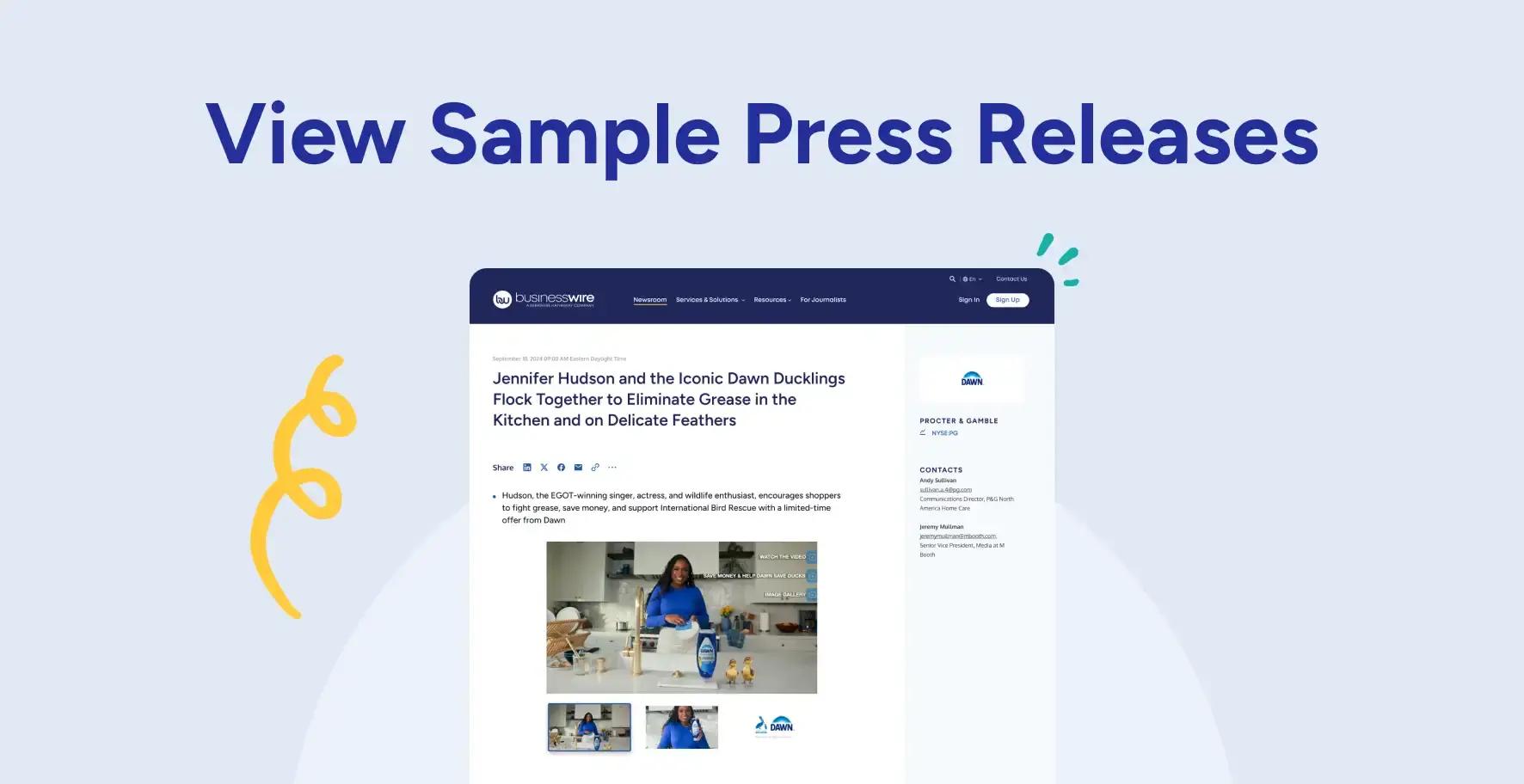
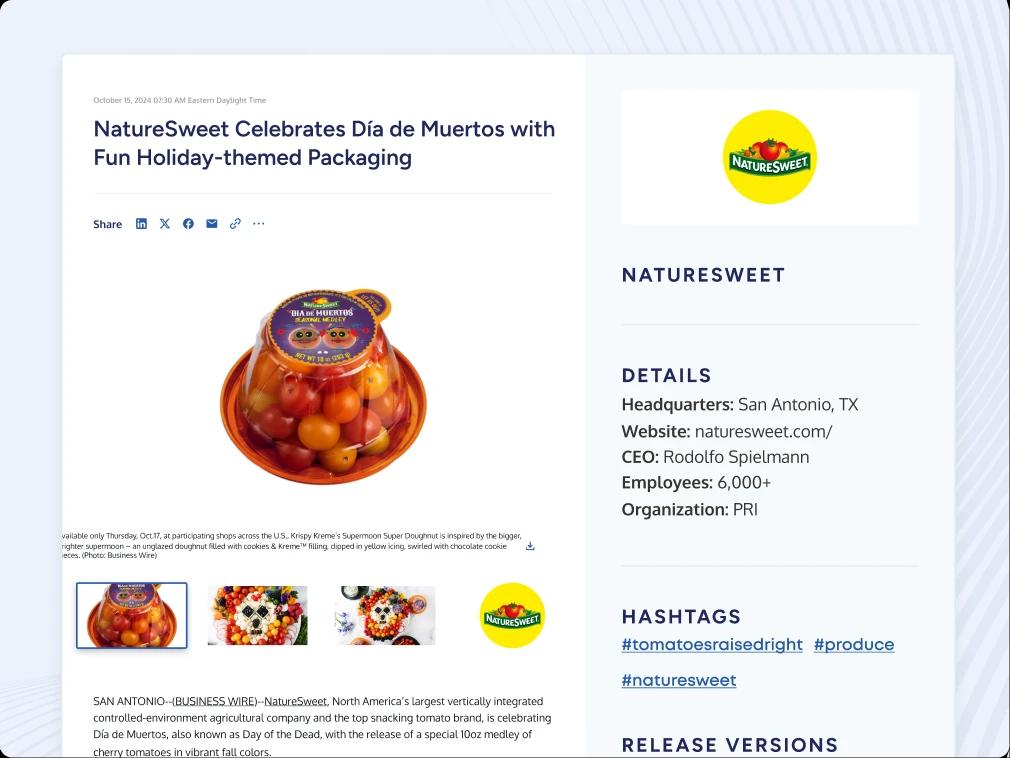
Use Case: Embed press release examples with this component. This component is available on all Page Collection and Single Type page. It is not available in Resource or Help pages.
Controls: Each press release example has two front-end rendered states: list and flyout. In the listing view, users can see an image of the release and whatever is in the Title Field. The flyout view also has an image of the release, the same Title field, the Description field, and a link to view the release in a pop up window that flies in from the right. The Description field uses a Full Rich Text Editor allowing line breaks, lists, text styling, and hyperlinks. There is no limit to the number of examples you can include.
Content Specs: Limit the Title Field to no more than 45 characters and the Link Text to 10 - 40 characters.
Resource Carousel
Use Case: Use this component to feature Business Wire resource content. This component is available in some variation on all pages.
Controls: The component has a resource selector that lets you pick individual resource assets or a resource Topic that automatically pulls in the latest resources where that topic is listed as the Primary Topic. There are not title tag controls, but you are required to select a 3-col or 4-col layout.
Content Specs: Titles automatically pull in from the asset and are not editable. Headings should be 10 - 25 characters and Link Text 10 - 40 characters.